
How to Automate Google Review Requests in 2026 (Without Review Gating)

Most local businesses don't lack happy customers. They lack a system that asks every one of them for a review at the right moment, and catches the unhappy ones before a problem turns into a one-star rating. Both jobs can be automated in an afternoon.
In the video below, Tim from Tim The SEO Guru builds that system: a branded feedback page every customer gets after a job, a Slack alert when someone scores you low, and automated replies to the reviews that come in. This article walks through his setup step by step, including the prompt he uses to build the page, and the one rule you can't break while doing it: Google doesn't allow you to only ask happy customers for reviews.
Why automate Google review requests at all
Tim opens with a "roofer miami" search. The top two roofers in the map pack have about 1,300 and 561 reviews, at 4.8 and 4.9 stars. His point is that it isn't just the total that matters. He lists three things he sees working together:
- A steady flow of new reviews, not a burst once a year.
- Consistent replies to every review, good and bad.
- Frequency: how recently and how often reviews arrive.
All three depend on doing the same thing after every job, which is exactly what people forget when they're busy. That's the case for automation. For a closer look at which review signals actually affect rankings, and why piling up more reviews alone won't move you, see our guide to Google reviews and SEO.
The workflow: one feedback page for every customer
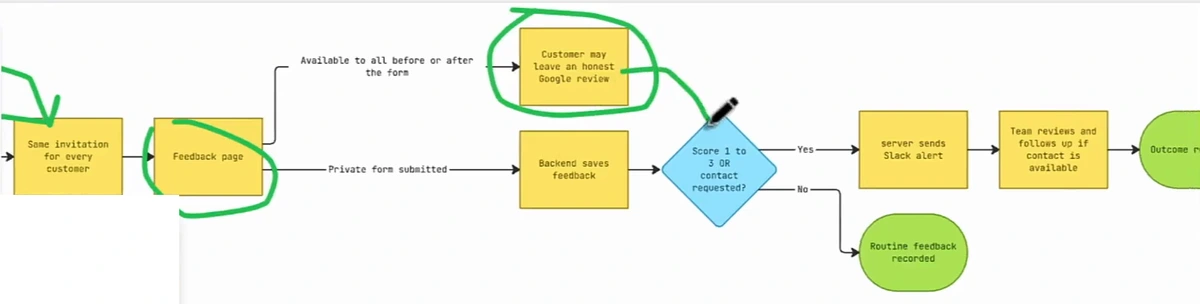
The flow has two paths running side by side:
- Every customer gets the same invitation once the job is done, by text, email or a QR code on the invoice.
- The invitation opens a feedback page branded for your business.
- On that page, anyone can leave a Google review, before or after filling in the form.
- Separately, the customer can send private feedback with a 1 to 5 score. Your backend saves it.
- If the score is 1 to 3, or the customer asks to be contacted, your team gets a Slack alert and follows up.
- Everything else is recorded as routine feedback you can learn from later.
The important design choice is that the Google review link and the private score are independent. The score decides who your team calls back. It doesn't decide who gets asked for a Google review.
Step 1: Build the feedback page
Here's the demo page Tim built for a fictional home-services company, Cedar & Co. On the left is what the customer sees; on the right is what the team sees.
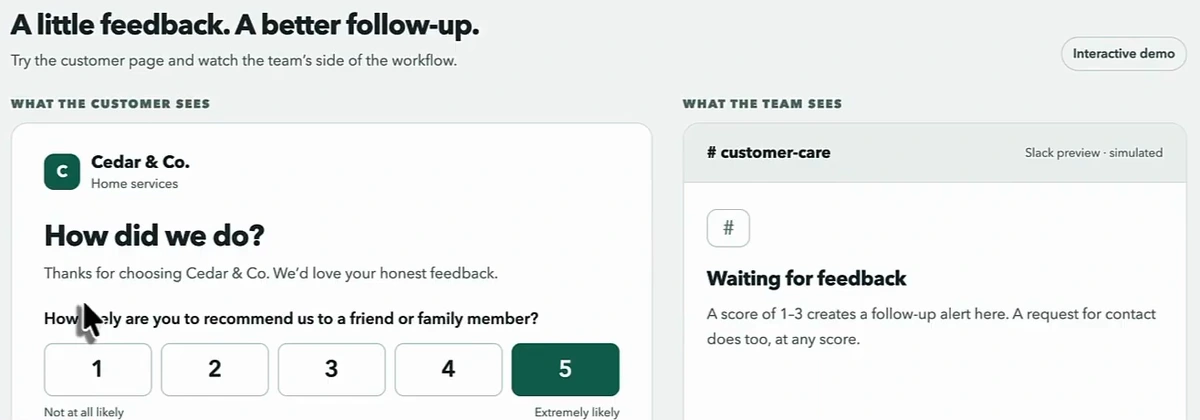
The page asks how likely the customer is to recommend you, plus optional comments, name and email, and a "please contact me" box. You don't need a developer. Tim generates it with an AI app builder: paste a prompt into ChatGPT or Claude, or use Base44, which can build the page and connect Slack without you writing code. You can then host the HTML on your own site or a service like Netlify.
This is the first half of the prompt he shares in the video:
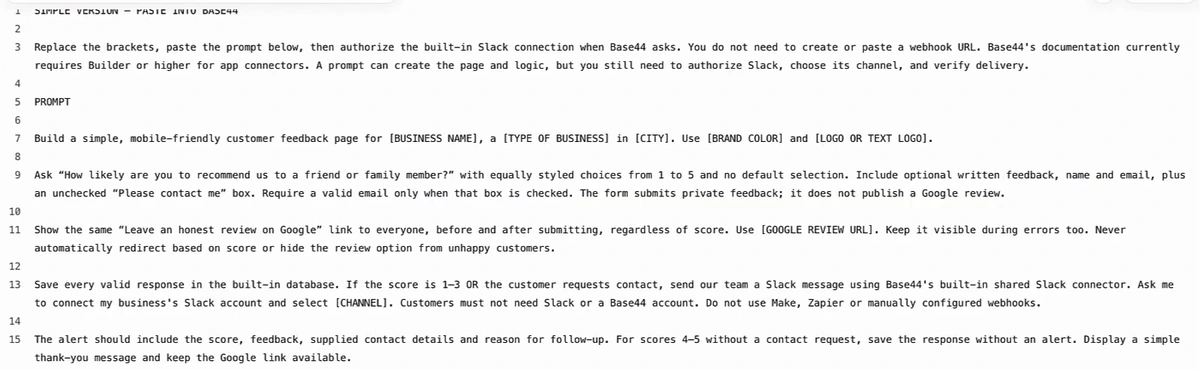
The parts worth copying into your own version:
- Equally styled choices from 1 to 5 with no default selection, so the page doesn't nudge people toward a high score.
- The same "Leave an honest review on Google" link for everyone, before and after submitting, whatever the score. "Never automatically redirect based on score or hide the review option from unhappy customers."
- The form submits private feedback; it doesn't publish a Google review. Those are two separate actions.
- Basic security: public visitors can submit but not read records, inputs are validated, and duplicate clicks don't create duplicate records.
- A test plan: before going live, test a 5/5 with no contact request and a 2/5, including a failed Slack delivery.
Replace the bracketed placeholders (business name, type, city, brand colour, Google review URL, Slack channel) with your own details. Your Google review URL is the "Ask for reviews" link in your Google Business Profile.
Step 2: Show the Google review link to everyone
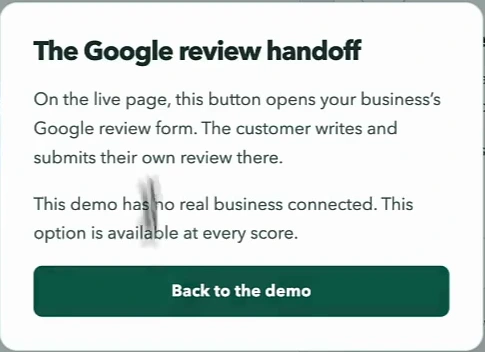
This is the step that gets small businesses into trouble. A common shortcut, called review gating, asks customers for a score first and only sends the happy ones to Google, while unhappy ones get routed to a private form. It's tempting because it inflates your rating. It's also against Google's rules. Google's review policy says businesses may not "discourage or prohibit negative reviews, or selectively solicit positive reviews from customers." Reviews collected that way can be removed, and the profile can face restrictions.
Tim is clear about this in the video. He says the link has to be there for everyone because filtering it is against Google's policies, and his prompt enforces it.
One suggestion in the video goes further than we would. Tim says that for customers who score you 5, he'd make the Google link bigger and more prominent, and leave it "not as obvious" for low scores. We'd skip that. Showing a bigger review prompt only to customers who rated you highly is a softer version of the same selective soliciting the policy describes, and it's exactly the kind of difference a reviewer at Google could read as gating. Keep the link the same size, in the same place, for every customer. The private follow-up for low scores is where your advantage comes from, not the button size.
Step 3: Alert your team when someone is unhappy
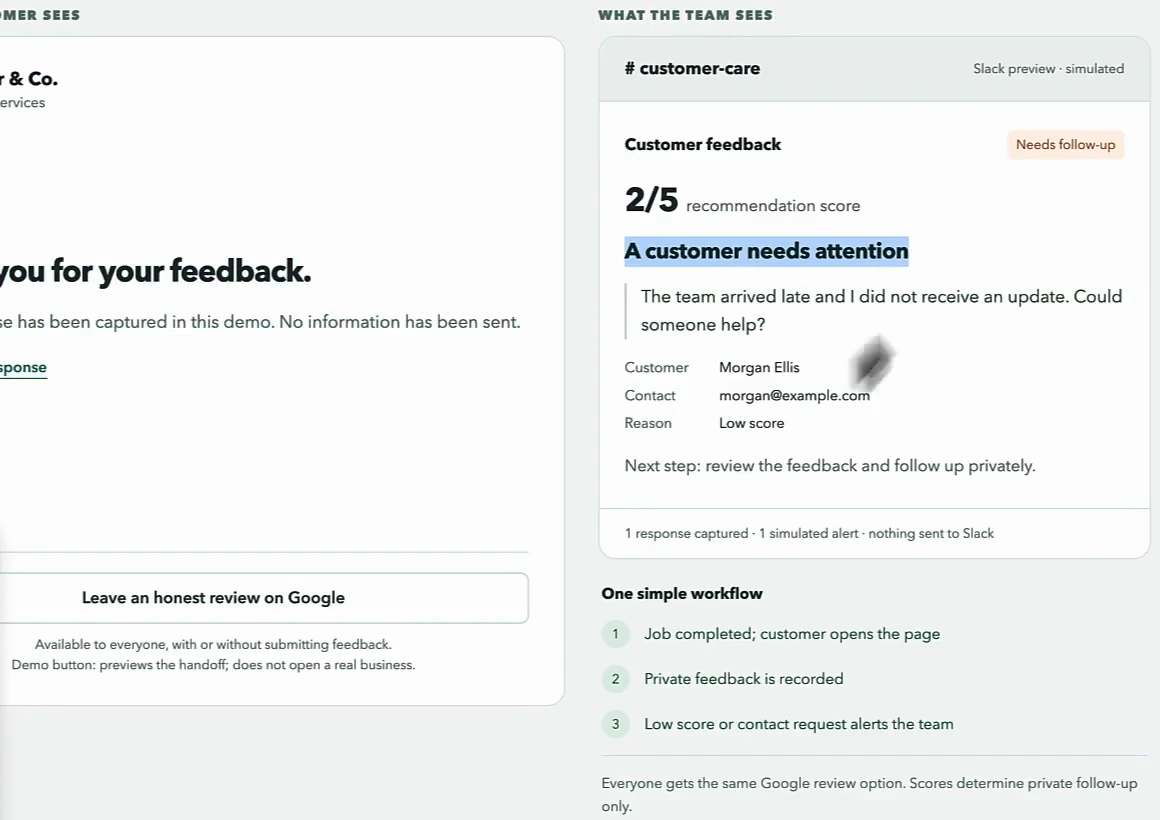
When a customer scores you 1 to 3, or ticks "please contact me", the page posts an alert to a Slack channel such as #customer-care. It includes the score, the customer's comment, their contact details and the reason for the alert. Scores of 4 or 5 without a contact request are saved quietly with no alert.
In the demo, a 2/5 says the team arrived late and nobody sent an update. That's a fixable problem, and the alert reaches the team while the customer is still annoyed rather than after they've written about it publicly. Tim's goal for this step is to fix the issue and change the customer's mind. Notice, though, that the customer in the screenshot still has the Google review button in front of them. The follow-up is about service recovery, not about stopping a review.
Connecting Slack is straightforward. Tim shows it from ChatGPT's plugins, and Base44 has a built-in Slack connector you authorise once. If your team doesn't use Slack, the prompt's optional section swaps the alert for an email to the owner.
Over time, the private feedback becomes a record you can learn from. If "arrived late" keeps showing up, that's a scheduling problem, and fixing it does more for your reviews than any automation.
Step 4: Automate review replies and GBP posts
Getting reviews is half the job. The other half is replying to every one of them, "good or bad, especially the bad," as Tim puts it. Replies show prospective customers that someone is listening, and they keep your profile active.
For this part he uses Arvow, which connects to your Google Business Profile and can reply to new reviews automatically, so you don't have to remember. The same connection can publish Google Business Profile posts on a schedule, another sign of an active listing. The demo account in the video isn't connected to a real profile, so it doesn't show a generated reply; if you want to see how replies are written and routed by sentiment, the Google review automation page covers it.
Two tips if you automate replies with any tool:
- Review the negative ones before they post. A good automated reply to a five-star review is easy. A reply to an angry customer needs a human to check it, especially if your team is already following up privately.
- Keep replies specific. Mention the service and, where natural, the area, rather than posting the same "Thanks for your review!" every time.
For what else is worth automating on your profile, see Google Business Profile automation. If you're getting reviews you think break the rules, our guide to reporting reviews and responding as the owner covers what Google will and won't remove.
What the full system looks like
| Step | What it does | Tool in the video |
|---|---|---|
| Invitation | Sends every customer the same link after the job | Your text, email or invoice |
| Feedback page | 1 to 5 score, comments, contact request, Google review link for everyone | AI-built page (ChatGPT, Claude or Base44) |
| Low-score alert | Posts scores of 1 to 3 or contact requests to your team | Slack connector |
| Follow-up | Team contacts the customer and fixes the problem | Your team |
| Review replies | Replies to every new Google review | Arvow review automation |
| GBP posts | Keeps the profile active with regular posts | Arvow |
Set it up once, test it with a 5/5 and a 2/5, and the only manual work left is the follow-up call, which is the part that should stay human. For how reviews fit into the rest of your map pack strategy, see how to rank #1 on Google Maps and the most common Google Business Profile mistakes.
FAQ
Can you automate Google review requests?
Yes. Send every customer the same link after each job, to a page that offers your Google review link and an optional private feedback form. What you can't automate is filtering: the review request has to go to everyone, not only to customers who seem happy.
What is review gating?
Asking customers how satisfied they are and then only directing the satisfied ones to leave a public review. Google's policies don't allow it, because it means selectively soliciting positive reviews.
Is it OK to ask unhappy customers for private feedback?
Yes, as long as they can still leave a Google review if they want to. Collecting private feedback and following up is good service. Hiding or shrinking the review option for them is where it becomes gating.
Can I offer a discount for a Google review?
No. Google's policy prohibits offering incentives such as payments, discounts or free services in exchange for reviews.
Should I reply to every Google review?
Yes. Reply to positive and negative reviews alike. If you automate replies, have someone check the replies to negative reviews before they're posted.
Reply to every Google review automatically, in your brand's voice. See Arvow's Google review automation.
Generate, publish, syndicate and update articles automatically
The AI SEO Writer that Auto-Publishes to your Blog
- Cancel anytime
- Articles in 30 secs
- Plagiarism Free