
Google Business Profile Photo Spam: How to Spot and Report It (2026)


Anyone with a Google account can add a photo to your Google Business Profile. Most of the time that's a good thing: customers post the finished job, the storefront, the van outside their house. But it also means someone can upload a picture of your van or your building with a different phone number or website edited onto it. A searcher looking through your photos sees the number, calls it, and reaches someone else.
In the video below, Tim walks through what this looks like, how to check your own profile, and how to report a photo to Google. We went through it frame by frame and added two things the video leaves out: how to tell who uploaded a photo, and why a number that doesn't match your listing isn't proof on its own.
What Google Business Profile photo spam looks like
The scheme is simple. Take a photo that looks like it belongs to the business (a branded truck, the front of the building, a job site) and change the phone number or web address on it. With today's AI image editors that takes seconds, and it doesn't have to be an edit of a real photo: an AI tool can generate a whole new "company van" with any number you like.
Then upload it to the competitor's profile as a customer photo. It shows up in the photo gallery next to the owner's own pictures. Tim's point is that this works because of how people actually choose a local business: they check the rating, open the photos to look around, and often call whatever number they see there instead of scrolling back to the listing.

The video presents this roofing photo as an illustration of the tactic. It doesn't show whose number that is or who uploaded the image, so treat it as a demonstration of what to look for, not as a documented case. What it does show well is the typical tell of a quick edit: a number that sits on top of the surface instead of being part of it. Look for a flat patch of colour, lettering that doesn't curve or tilt with the vehicle or wall, a font that doesn't match the rest of the signage, and a soft glow or blur around the edges.
Why it hurts even when nobody is fooled
The obvious cost is lost calls: every customer who dials the edited number is a job that goes to someone else. The attack also scales. Tim searches "hvac miami" and points out that someone could go through every business in the local pack and post a doctored photo to each, so a single operator could divert calls from a whole category in one city.
There's a second, quieter cost. A customer who notices two different numbers on your profile doesn't know which one is real, and a profile that contradicts itself looks careless or shady. That's the same trust problem as inconsistent name, address and phone details elsewhere on the web, which we cover in the most common Google Business Profile mistakes.
How to check your Google Business Profile photos
You don't need a tool for this; you need to look at your profile the way a customer does. Tim's routine:
- Search your main keyword the way a customer would (for example "hvac miami"), open Google Maps, and click into your listing.
- Open the photos and go through them, especially anything showing a vehicle, sign, storefront, flyer or business card, since those are the images that carry a phone number or URL.
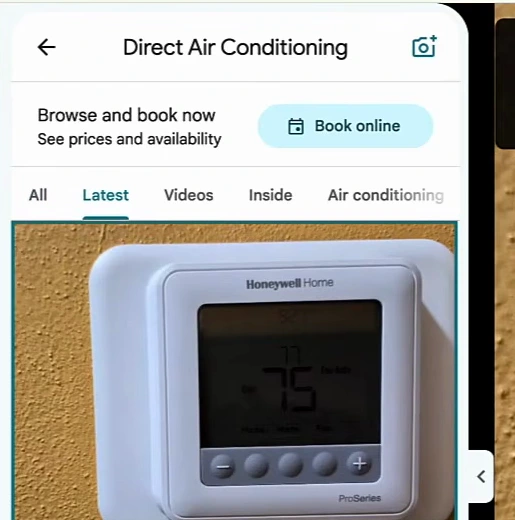
- Switch to the Latest tab so the newest uploads come first. A doctored photo will almost always be recent.
- Repeat weekly or every two weeks. It takes a few minutes, and you'll also catch photos that are simply irrelevant or unflattering.
Check who uploaded it
The video says you can't tell whether a photo was posted by the owner or by a customer. In the Maps photo viewer you can: the uploader's name appears in the box at the top left of every photo, along with the month it was added. Owner photos carry the business name; customer photos carry the contributor's name.
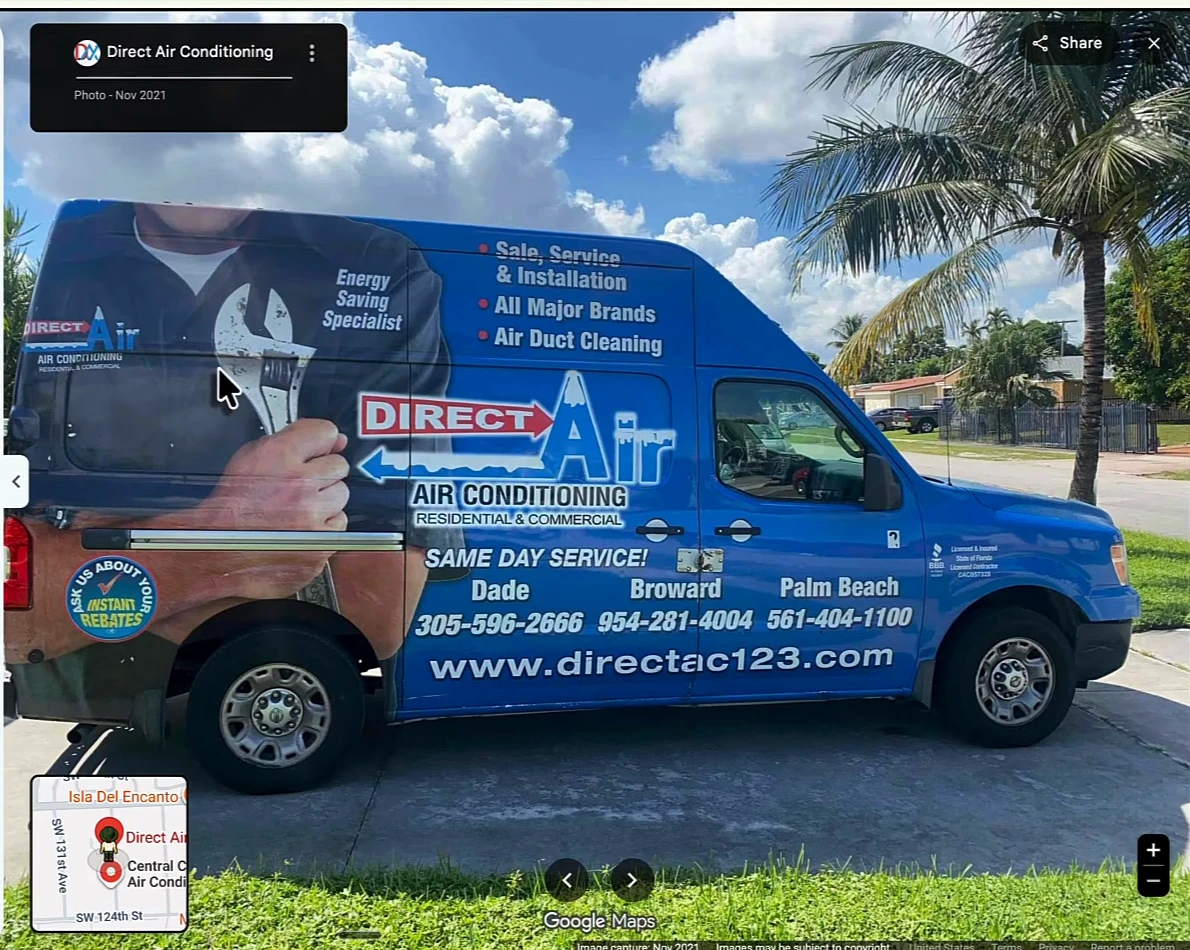
This gives you a quick filter: a photo of your van or shop uploaded by an account you don't recognise, recently, deserves a close look. A customer photo of a finished job is normal; a customer photo of your branded vehicle with contact details on it is not.
Don't treat every mismatched number as fake
The photo above is a good example of why you have to check, not assume. It's the business's own photo, and the van shows three regional numbers for Dade, Broward and Palm Beach. The number on the Google listing is a different one again:
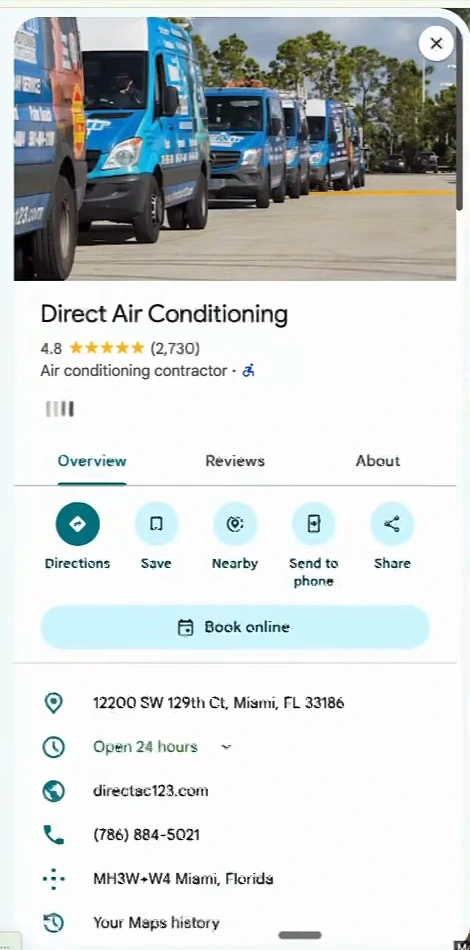
Nothing is wrong here: the business uses several numbers. But to a customer who compares them, it looks exactly like the inconsistency Tim describes. So there are two jobs, not one:
- Know every number and domain you use. Old tracking numbers, regional lines and a previous website on a van wrap all look suspicious to someone who doesn't know the business. If a number on an old photo no longer reaches you, replace the photo.
- Test anything you don't recognise. Call the number and visit the URL. If it reaches another company, you have your answer, and the details to put in your report.
How to report a photo on Google Maps
Open the photo, click the three-dot menu at the top of the viewer (or "Report a problem" in the bottom bar) and choose to report the content. Google then asks you why:
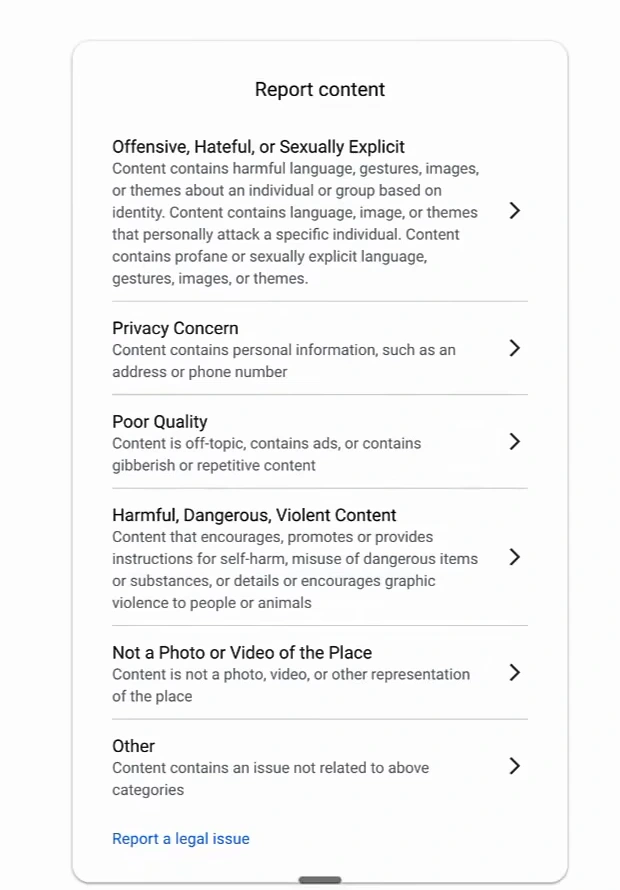
None of the categories says "someone changed my phone number", so here's how we'd map it (our reading, not an instruction from the video):
| What you found | Closest option |
|---|---|
| Your vehicle or sign with a competitor's number or URL on it | Poor Quality ("contains ads"). It's promotion for another business. |
| An AI-generated image that isn't your business at all | Not a Photo or Video of the Place |
| Your logo or brand used to pose as you | Report a legal issue (trademark or impersonation) |
| Anything else | Other, with a one-line explanation |
Google's own Maps user-generated content policy backs this up: it prohibits posting phone numbers or links for promotion, impersonating an organization, and distorting information to mislead people. Mentioning the specific rule in your report helps. Two practical notes:
- Report from the account that manages the profile if you can, and keep a screenshot of the photo with the uploader name and date before you report it, in case it comes back.
- Don't expect it to vanish instantly. Reports are reviewed, which is exactly why the weekly check matters: the sooner you find a doctored photo, the fewer calls it costs you.
Make your real photos easy to trust
The best defence is a gallery where the genuine number is everywhere and easy to verify:
- Upload your own photos regularly: vans, team, storefront, finished jobs, all showing the same number that's on your listing. A gallery full of recent, consistent owner photos makes an odd one out easier to spot, for you and for customers.
- Use one main number across your listing, website, vehicles and citations, or make sure every number you use appears on your website so customers can check.
- Keep the profile active. Regular posts and review replies make the listing look looked-after, which is what a customer is really checking when they browse your photos. Our guide to automating your Google Business Profile covers how to keep that going without it eating your week.
Photo spam is one of several ways competitors game Google Maps. For the others (fake listings and bought reviews), see three black hat Google Maps techniques and why they fail. And if you're working on getting into the top three in the first place, start with how to rank #1 on Google Maps.
Your photo-check routine
| How often | What to do |
|---|---|
| Weekly or every two weeks | Open your listing in Maps, go to Photos, then Latest. Check every image that shows contact details. |
| For each suspicious photo | Note the uploader and date, call the number, visit the URL, and screenshot it. |
| If it's misleading | Report it (three-dot menu, then report), using the closest category and naming the policy. |
| Monthly | Upload fresh owner photos showing your current number and website. |
| Once | List every phone number and domain your business uses, and retire old ones from photos. |
FAQ
Can anyone upload photos to my Google Business Profile?
Yes. Any Google user can add photos to a business's Maps listing, and they appear in the gallery alongside the owner's photos. That's why checking the Latest tab regularly matters.
Can I delete a photo someone else uploaded to my profile?
Not directly. You can remove photos you uploaded yourself, but for customer photos you have to report them to Google, which reviews the report against its content policy.
How do I know if a photo on my profile was uploaded by a customer?
Open the photo in Google Maps. The label at the top left shows the uploader's name and the month it was added. Your own uploads show your business name.
What should I do if a photo shows a competitor's phone number?
Call the number to confirm where it goes, screenshot the photo with its uploader and date, then report it through the photo's menu. "Poor Quality" (contains ads) is the closest category; Google's policy prohibits phone numbers posted for promotion.
Do fake photos affect my Google Maps ranking?
The video doesn't claim a ranking effect. The damage it describes is to your calls and to customer trust: people phone the wrong number, or see two numbers and doubt both.
Keep your profile active without the busywork: automate GBP posts and review replies with Arvow.
Generate, publish, syndicate and update articles automatically
The AI SEO Writer that Auto-Publishes to your Blog
- Cancel anytime
- Articles in 30 secs
- Plagiarism Free