
Search Google or Type a URL: What It Means and What to Do to Win (2026)

Table of Contents
Every time you open Chrome, Firefox, Edge, Safari, Brave, or Arc, one gray line of text greets you: "Search Google or type a URL." Or some variant of it — "Search or enter web address," "Search or type URL," "Type a URL or search."
It looks like a hint. It's actually a question the browser is asking you: Do you know exactly where you're going, or do you want me to help you find it?
Those two paths — search vs. direct navigation — define how the entire internet works. They decide where trillions of clicks go, which brands get typed in from memory, and which businesses have to earn their way into Google's results page.
This guide covers everything from the basics (what a URL actually is) to the advanced (how this simple prompt maps to billion-dollar SEO battles and the emerging race to get cited by ChatGPT and other LLMs). If you just want the short answer, it's here 👇
TL;DR: What "Search Google or Type a URL" Means
If you know the website, type its address: youtube.com, wikipedia.org, arvow.com.
If you don't know the website, type keywords or a question: best ai seo tool, how to rank on google, restaurants near me.
The bar does both jobs. It's called the omnibox in Chrome. Firefox calls it the Awesome Bar. Safari calls it the Smart Search field. Same idea.
Your browser guesses which you meant based on dots, slashes, and word count. Multiple words → search. Something that looks like a domain → navigation.
If your browser keeps redirecting or your search engine randomly changed, you may have browser hijacking or a rogue extension. Not a virus — but worth fixing.
That's the entire explanation. If you want the why (and the SEO implications that actually matter if you run a website), keep scrolling.
What Is a URL, Actually?
URL stands for Uniform Resource Locator. MDN Web Docs defines it as the unique address of a resource on the internet. Think of it like a postal address, but for webpages, images, videos, PDFs, and anything else reachable over HTTP.
Here's a real URL dissected:
https://arvow.com/blog/search-google-or-type-a-url?ref=twitter#faq
Part | Example | What it does |
|---|---|---|
Protocol | https:// | How the browser should connect (securely, in this case) |
Subdomain | www. (optional) | A section of the domain — like blog. or app. |
Domain | arvow.com | The actual site's name |
Path | /blog/search-google-or-type-a-url | The specific page on that site |
Query parameters | ?ref=twitter | Extra info passed to the page (tracking, filters, etc.) |
Fragment | #faq | Jumps to a specific section on the page |
For 99% of daily browsing, you only need the domain: gmail.com, nytimes.com, chatgpt.com. The browser fills in the rest.
💡 Pro tip: You don't even need to type https:// or www. — browsers add them automatically. Just nytimes.com + Enter works.
This structure also matters for anyone building a website. Clean, readable URLs are one of the quiet but powerful technical SEO signals search engines use to understand what a page is about — something Arvow's AI SEO Agent automatically optimizes as part of its on-page audits.
Why Your Browser Combines Search and Navigation
There used to be two separate boxes at the top of every browser: one for web addresses, one for search. It was clean in theory. In practice, people got confused.
Chromium's omnibox documentation explains the problem: forcing users to decide which box to type in adds friction. You'd have to know — before typing a single letter — whether you were going somewhere or looking for something.
So in 2008, Google Chrome launched the omnibox: one smart field that handles both jobs. Firefox followed with the Awesome Bar, Microsoft Edge added it natively, and Apple renamed Safari's version the Smart Search field (which Apple documents here).
Today, every major browser works this way. The phrase "Search Google or type a URL" is simply Chrome's way of telling you: this one box does both.
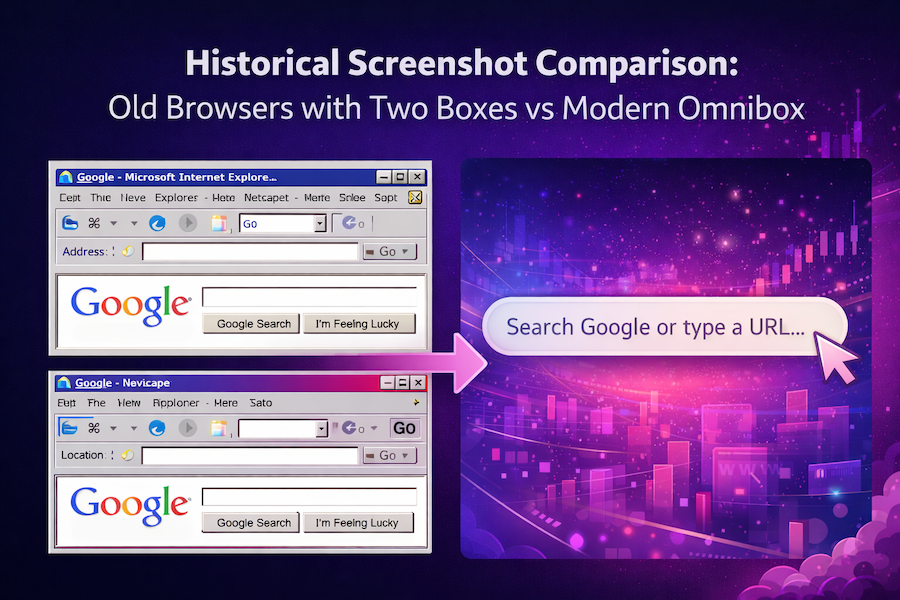 Older browsers forced users to choose between an address bar and a search box. The omnibox collapsed them into one.
How Does Your Browser Know to Search vs. Navigate?
This is the part most explainers skip — and it's where things get interesting.
Browsers use heuristics — a fancy word for educated guesses. Here's what they look at:
Signals that say "this is a URL"
Contains a dot followed by a recognizable TLD (.com, .org, .io, .co.uk)
Starts with http:// or https://
Contains a slash (/)
Matches a site in your browsing history or bookmarks
Signals that say "this is a search query"
Multiple words separated by spaces
Ends with a question mark
Contains no dots or slashes
Doesn't match any known domain
Here's how this plays out in practice:
What you type | What happens | Why |
|---|---|---|
amazon | Searches Google for "amazon" | Single word — ambiguous |
amazon.com | Opens Amazon | Has a dot + .com TLD |
how to bake sourdough bread | Searches Google | Multiple words — clearly a query |
support.mozilla.org | Opens Mozilla Support | Domain-like structure |
arvow | Searches Google | No dot, single word |
arvow.com | Opens Arvow | Clear domain |
This is why typing facebook might search Google instead of opening Facebook — the browser doesn't know if you want the site or news about the site. Add .com, and the ambiguity disappears.
⌨️ Shortcut: In Chrome on Windows/Linux, type a site name + Ctrl + Enter to auto-add www. and .com. On Mac, Control + Return works. So facebook + Ctrl+Enter → www.facebook.com.
This heuristic logic is the exact same kind of intent-detection that modern search engines — and now LLMs like ChatGPT — use to decide what a user actually wants. It's also why building content that matches real user intent, which Arvow's AI SEO Writer does automatically, has become the cornerstone of modern SEO.
What Actually Happens When You Start Typing
The address bar feels instant because your browser starts working before you press Enter.
Chrome's documentation explains that as soon as you type, the browser:
Searches your local history, bookmarks, and open tabs for matches
Sends your keystrokes to your default search engine (if suggestions are on) to fetch real-time autocomplete
Preconnects to the most likely destination to reduce load time
Sometimes prerenders the entire page in the background when it's highly confident
Firefox, Edge, and Safari all do something similar. Firefox explicitly says its suggestions adapt based on how frequently and recently you visited a page, plus which result you clicked last time. The more you use it, the sharper it gets.
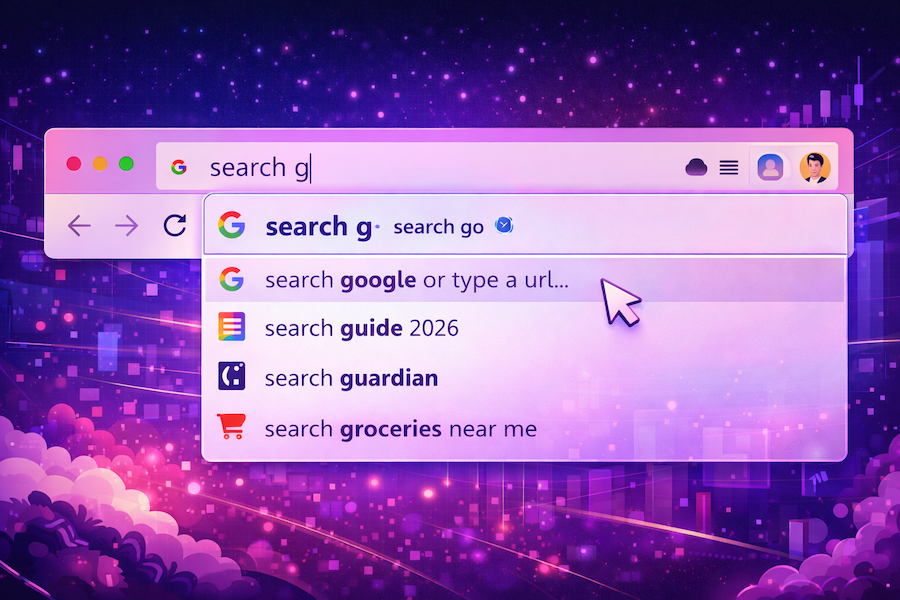 Every keystroke in the address bar can trigger history lookups, search suggestions, and background preconnections.
Here's a quick video that walks through how the Chrome omnibox works under the hood:
{{< youtube LJJiEJIjpI4 >}}
(Video embed: Google's "How Chrome's Omnibox works" — replace the ID with your preferred demo)
When Should You Search vs Type a Web Address?
Simple rule: match your action to your knowledge.
Type a URL when you know where you're going
Faster, no middlemen, no tracking through search results. Use it for:
Sites you visit daily: gmail.com, notion.so, slack.com
Banking and financial sites (avoid getting phished through Google ads)
Admin dashboards: app.arvow.com, wordpress.com/wp-admin
Any destination you'd recognize instantly
Search when you're still exploring
Searching makes sense when you:
Don't know the exact site — best budget laptops under $800
Want to compare options — notion vs obsidian for writers
Are troubleshooting — chrome keeps redirecting to bing
Need current info — euro to usd rate today
The decision tree
Do you know the exact website? ├── YES → Type the URL. Hit Enter. Done. └── NO → Type keywords or a question. Pick from Google's results.
For website owners, this distinction is everything. People who type your URL directly are already yours — they're brand traffic, returning customers, loyalists. People who search are still winnable. Every company competes for those search moments, and the ones that consistently publish high-quality SEO content are the ones that capture them.
Address Bar Differences Across Browsers
Every major browser has its own wording and quirks. Here's how they compare:
Browser | Address bar name | Default prompt text | Default search engine |
|---|---|---|---|
Chrome | Omnibox | "Search Google or type a URL" | |
Firefox | Awesome Bar | "Search with [engine] or enter address" | Google (changeable) |
Safari (Mac/iOS) | Smart Search field | "Search or enter website name" | |
Microsoft Edge | Address bar | "Search or enter web address" | Bing |
Brave | Omnibox | "Search the web privately" | Brave Search |
Arc | Command bar | "Search or type URL" | |
Opera | Address field | "Search or enter address" | |
Vivaldi | Address field | "Search or enter an address" | DuckDuckGo |
And on mobile:
iOS Safari uses the same Smart Search field, now at the bottom of the screen by default
Chrome on Android auto-detects whether you want the URL or a search and shows voice + lens buttons
Samsung Internet adds an extra "secret mode" that blocks all autocomplete history
The behavior is nearly identical everywhere — the only real differences are the default search engine and the wording of the placeholder text.
Fixing Common "Search Google or Type a URL" Problems
Problem 1: "I typed a URL but it searched Google instead"
Usually one of four causes:
The input was ambiguous. Typing amazon → Google search. Typing amazon.com → Amazon. Always include the TLD.
Autocomplete grabbed a search suggestion instead of a URL match. Delete bad suggestions with Shift + Delete while they're highlighted in the dropdown.
Your default search engine changed. Check Settings → Search engine.
A browser extension hijacked the bar. We'll cover this below.
Problem 2: "My browser keeps redirecting me somewhere weird"
This is almost always browser hijacking, which Firefox documents thoroughly. Symptoms:
Home page changed without your input
Default search engine swapped to something unfamiliar
Can't revert settings — they bounce back
Random toolbars appeared
Clicking links opens ad-heavy pages
The fix:
Open your browser's extensions page and remove anything you don't recognize
Run a reputable malware scan (Malwarebytes is the standard free option)
On work devices, check with IT — enterprise policies sometimes lock settings
Chrome explicitly warns that if your search engine settings won't stick, it's a strong malware signal.
Problem 3: "My address bar suggestions feel creepy / invasive"
That's because they are, a little. When suggestions are on, every keystroke is sent to your default search engine in real time, along with your IP address and cookies. Firefox documents this, as do Chrome and Edge.
To turn it off:
Chrome: Settings → You and Google → Sync → Improve search suggestions → Off
Firefox: Settings → Search → Provide search suggestions → Off
Edge: Settings → Privacy, search, and services → Address bar and search → Show me search and site suggestions → Off
Safari: Settings → Search → Include search engine suggestions → Off
Firefox turns suggestions off by default in Private Browsing; Edge does the same in InPrivate mode.
How to Customize the Address Bar in Every Browser (2026)
There's no single toggle to remove the "Search Google or type a URL" phrase — but you can fully customize what the bar does.
Chrome
Change default search engine: Settings → Search engine → Manage search engines
Change startup behavior: Settings → On startup
Customize New Tab page: Open a new tab → click Customize Chrome
Reduce data sent to Google: Settings → You and Google → Sync and Google services
Firefox
Change default search engine: Settings → Search
Change homepage: Settings → Home
Customize New Tab: Settings → Home → Firefox Home Content
Turn off search hijacking protection: leave this ON — it's your friend
Microsoft Edge
Change default search engine: Settings → Privacy, search, and services → Address bar and search. Microsoft notes you may need to search on the engine once before it shows up in the list.
Change home page: Settings → Start, home, and new tab page
Safari (Mac and iOS)
Change search engine: Safari → Settings → Search (Mac) or Settings app → Safari → Search Engine (iOS)
Separate Private Browsing engine: Apple lets you set a different engine for private tabs
Smart Search toggles: Same Search settings → toggle suggestions, Safari Suggestions, Quick Website Search
Brave
Change default search: Settings → Search engine. Brave Search is the default, but you can switch to Google, DuckDuckGo, Startpage, or Kagi in one click.
Arc
Command bar customization: Arc → Settings → General. Arc uniquely lets you invoke the command bar from anywhere with Cmd+T.
Power User Tips and Shortcuts
The address bar isn't just a search box — it's a command palette. Once you know these, you'll never go back.
Universal shortcuts
Shortcut | What it does |
|---|---|
Ctrl/Cmd + L | Jump cursor to address bar |
Ctrl/Cmd + Enter | Auto-add www. and .com |
Shift + Delete | Delete a bad autocomplete suggestion |
Alt/Option + Enter | Open typed URL in a new tab |
Chrome-specific power moves
@tabs + Tab → search your open tabs
@history + Tab → search your browsing history
@bookmarks + Tab → search your bookmarks
Custom site search: Settings → Search engine → Site search → add any site with a shortcut like yt for YouTube or gh for GitHub
Firefox shortcuts
@amazon, @google, @wikipedia → search that specific site
* → search bookmarks only
% → search open tabs only
$ → match URLs only (skip titles)
? → search suggestions only
Safari
Quick Website Search: Safari remembers search patterns. Search for a term on reddit.com once; next time you type reddit it'll offer to search Reddit directly.
The Privacy Side of the Address Bar
Every time you type in the address bar with suggestions enabled, you're sending data to a third party. Here's what's typically collected:
Your keystrokes (character by character)
Your IP address
Cookies from the search provider
Your approximate location (via IP)
Your user agent (browser + OS version)
This is why privacy-focused users often:
Switch default engines to DuckDuckGo, Startpage, Brave Search, or Kagi
Disable search suggestions entirely
Use Private/Incognito/InPrivate mode for sensitive searches
Route traffic through a VPN for IP anonymization
If you want the sharpest privacy setup: Firefox + DuckDuckGo + suggestions off + a content blocker like uBlock Origin. Brave is the easiest "works out of the box" choice.
The SEO Angle: Why This Tiny Phrase Is Actually a Multi-Billion-Dollar Moment
Here's where most articles about "Search Google or type a URL" stop. They shouldn't.
Every time a user hits that address bar, they're making one of two choices — and those choices represent two completely different markets.
Choice 1: Type a URL = brand market
When someone types notion.so, Notion has already won. No competition. No search ads. No fight for attention. That user is theirs. This is what marketers call direct traffic — it's a moat built from years of brand awareness.
Choice 2: Search = the contested market
When someone searches best note-taking app for teams, every company with a decent SEO strategy has a shot. This is organic search — and it's where the actual fight for new customers happens.
The number is staggering: Google processes over 8.5 billion searches per day. Most of them start in exactly this address bar. The businesses that rank for those searches capture new customers. The businesses that don't, don't.
That's the entire SEO game in one diagram:
ADDRESS BAR │ ├── TYPE URL ──► Brand traffic (you already won) │ └── SEARCH ────► Google results ──► First page? You win. └► Not? Someone else does.
This is why ranking on page 1 is worth actual money. And it's why we built Arvow — to help businesses systematically capture those "search" moments with content that ranks, without needing to hire a full content team.
The SEO game in one image: the listings on this page are worth millions in traffic collectively.
The New Twist: How LLMs Are Changing "Search or Type a URL"
Something new is happening in 2026: the "search" side of that address bar is splintering.
A growing share of users skip Google entirely and ask ChatGPT, Claude, Perplexity, Gemini, or Grok instead. Instead of typing best AI SEO tool into Chrome, they ask ChatGPT: "What's the best AI SEO tool for agencies in 2026?"
The LLM answers — and the brands it mentions in its answer get the traffic. The brands it doesn't, don't.
This is the new battleground. And it's exactly why Arvow built the LLM Visibility Tracker — so businesses can see whether ChatGPT, Claude, and Perplexity are citing them in the conversations that matter. If they're not, you need content strategy built around getting cited, not just ranked.
Your content now has to win in two places:
Google's search results — traditional SEO
LLM answers — Generative Engine Optimization (GEO)
The good news: the fundamentals are the same. Well-structured content, clear expertise signals, consistent publishing, and internal/external linking all help. The better news: tools like Arvow's AI SEO Writer and Autoblog automate most of the grunt work — keyword research, content production, on-page optimization, CMS publishing — so you can actually keep up.
How to Show Up When People Search (Instead of Type Your URL)
If you want people to type your URL from memory, you have to earn the brand first. And to earn the brand, you usually have to show up in search results when they're still looking.
Here's the short version of how to do that:
Find keywords people actually search — not vanity terms. Our SaaS SEO course walks through this end-to-end.
Create content that answers their question better than the top 3 results — longer, clearer, with actual expertise.
Publish consistently — Google rewards sites that ship. Our case studies show sites hitting 14K+ monthly visits in 60 days by publishing daily.
Optimize on-page — titles, headings, schema, internal links, image alt text. An AI SEO Agent can do this automatically.
Build topical authority — cover your niche so thoroughly that Google (and LLMs) treat you as the default source.
Distribute — social, newsletters, YouTube. The best SEO strategies aren't just about Google anymore.
If doing all of that manually sounds exhausting — it is. That's the entire reason we built Arvow. One dashboard, writing + optimization + publishing + LLM tracking, so you actually keep up with competitors who are already publishing 30+ SEO articles a month.
Frequently Asked Questions
Is "Search Google or type a URL" a virus?
No. It's the default placeholder text in Chrome's address bar — completely normal. It becomes a concern only if your search engine changes unexpectedly, your homepage gets replaced, or the browser keeps redirecting you. In those cases you likely have a browser hijacker or rogue extension, not a virus. Remove unknown extensions, reset the browser, and scan for malware.
Why does typing "Facebook" search Google instead of opening Facebook?
Because facebook is a single word with no TLD — the browser can't tell if you want the site or news about the site, so it defaults to searching. Type facebook.com and it'll open directly. You can also type facebook + Ctrl + Enter (Windows) or Control + Return (Mac) and Chrome will auto-complete it to www.facebook.com.
Can I remove the "Search Google or type a URL" message entirely?
Not directly — there's no single toggle. What you can do is change the default search engine (so it says "Search Bing" or "Search DuckDuckGo"), customize the New Tab page, or switch browsers to one with different wording (Safari says "Search or enter website name," Firefox says "Search with Google or enter address"). Most people asking this question actually want to change their search engine — do that instead.
Does typing in the address bar send my data to Google?
If suggestions are enabled — yes. Your keystrokes are sent to your default search provider in real time, along with your IP and cookies. Chrome, Firefox, Edge, and Safari all document this. To stop it, disable search suggestions in settings, or switch to a privacy-focused engine like DuckDuckGo or Brave Search.
What's the difference between a URL and a search term?
A URL is a specific web address — bbc.com, arvow.com/pricing. A search term is a question, topic, or phrase — latest world news, best ai seo tool. Your browser uses dots, slashes, and word count to guess which one you typed.
Can I search inside a specific website from the address bar?
Yes, in every major browser:
Chrome: Add the site under Settings → Search engine → Site search, give it a shortcut like yt, then type yt cooking videos to search YouTube directly.
Firefox: Type @amazon laptop to search Amazon, or set up custom shortcuts.
Safari: "Quick Website Search" auto-learns patterns — search within a site once, then type the site name in the Smart Search field to search there again.
Can I use a different search engine instead of Google?
Absolutely. Every browser lets you change it:
Chrome: Settings → Search engine → Manage
Firefox: Settings → Search
Edge: Settings → Privacy, search, and services → Address bar and search
Safari: Safari → Settings → Search
Popular alternatives: DuckDuckGo (privacy), Bing (integrated AI), Brave Search (independent index), Kagi (paid, ad-free), Ecosia (plants trees).
What browser is best for privacy when using the address bar?
Brave out of the box (private search, no suggestion leakage, ad + tracker blocking built in), or Firefox + DuckDuckGo + suggestions off for maximum control. Safari is decent, Chrome and Edge are the leakiest by default.
Does the address bar affect SEO for my website?
Indirectly — hugely. The more people who type your URL directly, the stronger your brand signals to Google. The more people who search for relevant terms and click your result, the higher your organic rankings climb (click-through rate is a ranking factor). The goal is to earn both — start with SEO content that ranks, then build enough brand recognition that people eventually type your URL from memory.
Why is "Search Google" the default — can Google force it?
On Chrome, yes — Google is both the browser maker and the default engine, and the deal with Apple to be Safari's default is worth over $20 billion a year. You can change the default in seconds, but most users never do. This is exactly why showing up in Google search results is so valuable: Google is the default gateway to the web for the majority of people.
The Bottom Line
"Search Google or type a URL" sounds like a hint. It's actually the doorway to the entire internet — one box, two completely different journeys.
Type a URL when you know where you're going. Search when you don't. Check your extensions if the bar misbehaves. Turn off suggestions if you want privacy.
And if you run a website and you want to stop losing those "search" moments to competitors — that's where Arvow comes in. Our AI SEO Writer, Autoblog, SEO Agent, and LLM Visibility Tracker work together to make sure you show up both when people search Google and when they ask ChatGPT, all on autopilot. You can try it free or book a demo to see if it's a fit.
Because the real lesson of "Search Google or type a URL" isn't browser trivia. It's this: every search is a customer deciding where to spend their attention. The businesses that show up there, win. The ones that don't, wait.
Generate, publish, syndicate and update articles automatically
The AI SEO Writer that Auto-Publishes to your Blog
- Cancel anytime
- Articles in 30 secs
- Plagiarism Free