
What Keywords Does Your YouTube Channel Actually Rank For? (and how to check all of them)

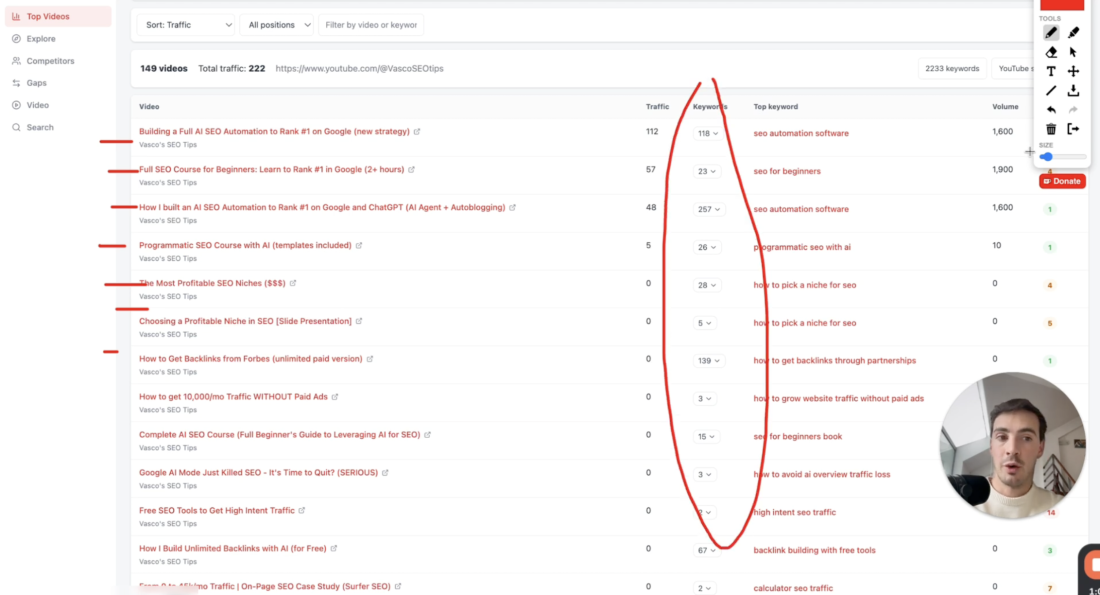
Table of Contents
Quick question: how many keywords does your YouTube channel rank for right now?
If your answer is "I have no idea" — you're not alone. And you're almost certainly leaving views on the table because of it.
Most creators either guess (bad), rely on YouTube Studio's Search Terms report (limited), or manually type keywords into YouTube one at a time to check if they show up (painfully slow and backwards). None of these give you the full picture.
This post explains exactly what data is actually available, where YouTube Studio falls short, and how to finally see every keyword every video on your channel ranks for — all in one place.
First: What People Mean When They Search "Channel Keywords"
When you Google "what keywords does my YouTube channel rank for," nearly every result talks about the channel keywords field in YouTube Studio settings.
That's not what you're looking for — and it's a totally different thing.
⚠️ Quick clarification: Channel keywords (in YouTube Studio → Settings → Channel → Basic Info) are metadata tags you add to describe your channel to YouTube. They're an input. What most people actually want is the output: the real search terms people are typing to find your videos right now.
These are two completely different things. The channel keywords field might as well be labeled "tell YouTube what you think you're about." Ranking keywords are what YouTube and your viewers have already decided you're about — based on your actual content.
What YouTube Studio Actually Shows You (And What It Hides)
YouTube Studio does have real keyword data. It's in Analytics → Reach → Traffic source: YouTube search. This shows you search terms that have driven views to your channel. It's legitimate data straight from YouTube.
But it has four hard limits that make it insufficient for understanding your full keyword footprint.
📸 [Screenshot: YouTube Studio Analytics → Reach → Traffic source → YouTube search, showing the limited search terms list]
The 4 Limits of YouTube Studio's Search Terms Report
Limitation | What it means for you |
|---|---|
Only shows keywords that drove clicks | You could rank #6 for a 5,000/month keyword and it won't appear — because nobody has clicked your result yet. All those impressions are invisible. |
28-day rolling window | Keywords that drove traffic last month but not this month disappear. Seasonal content, older videos, and occasional-traffic keywords vanish from the record. |
No per-video breakdown at channel level | You see search terms at the channel level, but not which video each keyword belongs to. To see keywords per video, you have to click into every single video individually. |
No ranking position data | You see a keyword sent you 15 views. But are you ranking #1 or #19? You have no idea — and that's the difference between "consolidate this" and "optimize urgently." |
🚨 The result: If you have 100 videos on your channel, getting your full keyword picture from YouTube Studio means clicking into each video one by one, reading the search terms report, noting the data, and doing it all again next month when it resets. That's not a workflow — it's a full-time job.
The Manual Workaround (And Why It Only Works Backwards)
The other approach most creators use is manual: open an incognito window, search a keyword on YouTube, see if your video appears.
This feels productive. It isn't. Here's why it fails:
You can only check keywords you already know about. You're confirming suspicions, not discovering unknowns.
It doesn't scale. A channel with 150 videos might rank for 3,000+ keywords. Checking them manually would take weeks.
Results vary by location and login state. What you see in your browser isn't what your viewers in other countries see.
You'll miss the long tail entirely. The keywords that collectively drive the most traffic are often variations you'd never think to type in manually.
💡 Think about it this way: imagine running a website and not being able to see Google Search Console. You'd be optimizing completely blind. That's exactly the situation most YouTube creators are in right now — and they don't even realize it.
The Ahrefs Analogy That Makes This Click
If you've used Ahrefs or Semrush for website SEO, the gap here will be immediately obvious.
In Ahrefs Site Explorer, you paste a domain and you get:
Every page on the site ranked by organic traffic
Every keyword each page ranks for in Google
The exact ranking position for each keyword
Estimated monthly traffic per keyword
The same data for any competitor's domain
This is the foundational workflow of modern SEO. Nobody does Google SEO without it. And yet for YouTube — the second largest search engine on the planet — the equivalent didn't exist as a standalone tool.
You couldn't paste a YouTube channel URL and get a complete keyword report. Not in TubeBuddy. Not in vidIQ. Not anywhere. Until now.
📸 [Side-by-side: Ahrefs Site Explorer "Top Pages" report on the left vs YouTube Rank Tracker "Top Videos" report on the right — same concept, different search engine]
How to See Every Keyword Your YouTube Channel Ranks For
YouTube Rank Tracker is built specifically to solve this. The workflow is as simple as it gets:
Go to youtuberanktracker.com
Paste your YouTube channel URL
Hit Analyze
In seconds, you get a full channel report showing every video sorted by estimated search traffic, with all the keywords each video ranks for, their search volumes, and your ranking position for each one.
📸 [Screenshot: YouTube Rank Tracker — Top Videos report with a row expanded showing the list of keywords, positions, volumes and estimated traffic for a single video]
YouTube Studio vs YouTube Rank Tracker: Full Comparison
Feature | YouTube Studio | YouTube Rank Tracker |
|---|---|---|
See keywords per video | ✅ (one video at a time) | ✅ All videos at once |
See ranking position | ❌ | ✅ |
See keywords with no clicks yet | ❌ | ✅ |
Search volume per keyword | ❌ | ✅ |
Estimated traffic per keyword | ❌ | ✅ |
Analyze competitor channels | ❌ | ✅ |
Historical data beyond 28 days | ❌ | ✅ |
Content gap analysis | ❌ | ✅ |
What You'll Actually Find When You Run the Report
When creators run a channel analysis for the first time, a few things consistently surprise them.
1. You're ranking for way more keywords than you think
A channel with 50–100 consistently published videos will often rank for thousands of keywords in aggregate. The majority are long-tail variations the creator never explicitly targeted — YouTube's algorithm found the relevance on its own. You'll never see most of these in YouTube Studio because individually they drive very little traffic. But combined, they often represent a significant portion of your channel's discoverability.
2. Your biggest opportunities are at positions 3–8
Every channel analysis surfaces videos sitting at positions 3 through 8 for keywords with meaningful search volume. These are your fastest wins. You're already ranking — you just need to move up. A better title, an improved thumbnail, or a tighter description alignment can shift a video from position 5 to position 2 and double its search traffic overnight.
📸 [Screenshot: YouTube Rank Tracker — Video Analysis view showing a single video's keywords, highlighting several at positions 3-6 with volume 1,000+]
3. Your top traffic video probably isn't the one you expect
Almost every creator is surprised by this one. When you sort your videos by estimated search traffic, the top performer is rarely the video with the most views or the most recent upload. It's usually an older video that hit a keyword gap at the right time and quietly accumulated search rankings over months. Knowing which video this is changes how you think about your content strategy entirely.
4. You have competitor intel you've never had before
Because the tool works for any public YouTube channel, you can run the same analysis on any competitor. Paste their channel URL and see exactly which keywords their videos rank for, what positions they hold, and where they're outranking you. This changes competitor research from "watch their videos and guess" to an actual data-driven process.
📸 [Screenshot: YouTube Rank Tracker — Competitors view showing two channels compared with overlapping keywords and positions]
A Real Example: What the Data Looks Like
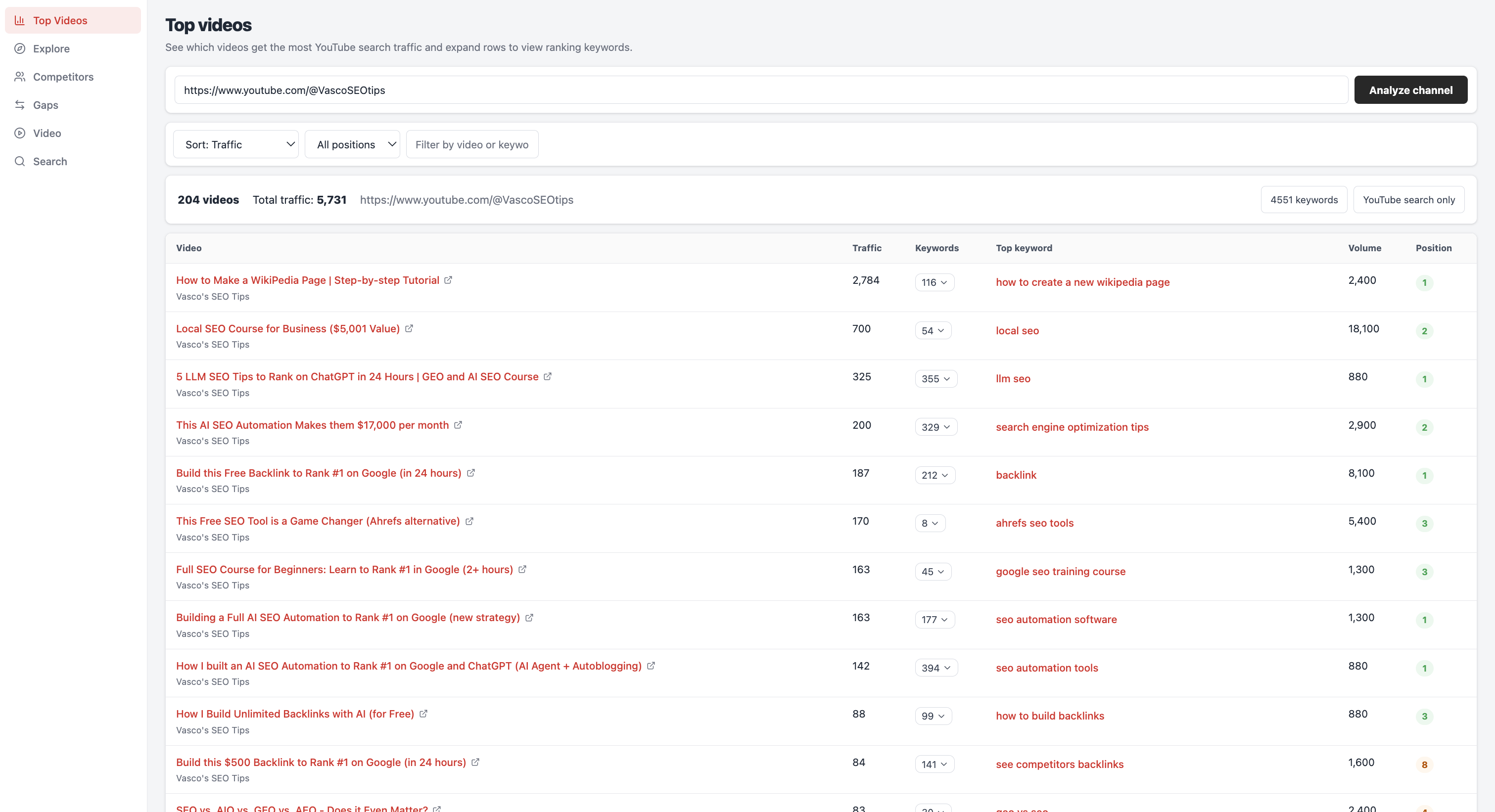
To make this concrete, here's the kind of data you get when you run a channel through YouTube Rank Tracker. This example is from Vasco's SEO Tips — an SEO-focused YouTube channel.
Video | Est. Traffic | Keywords | Top Keyword | Position |
|---|---|---|---|---|
How to Make a Wikipedia Page | 2,186 | 56 | how to create a wikipedia page | #1 |
Local SEO Course for Business | 700 | 54 | local seo | #2 |
AI SEO Automation Makes $17,000/mo | 597 | 303 | ai seo | #2 |
5 LLM SEO Tips to Rank on ChatGPT | 325 | 352 | llm seo | #1 |
In one view, you can see that the Wikipedia video is the clear traffic leader (2,186 estimated monthly visits), ranking #1 for its top keyword and covering 56 different search terms. The AI SEO video, despite being newer, already ranks for 303 keywords — meaning the algorithm has picked up on its relevance far beyond the single keyword it was optimized for.
This is the kind of clarity that changes how you think about your channel. It's not just "which videos got views" — it's "which videos are ranking, for what, and at what position."
How to Use This Data to Grow Your Channel
Once you have your full keyword report, here's a practical framework for acting on it:
Step 1 — Find your position 3–8 opportunities
Filter your videos to find any ranking between position 3 and 8 for keywords with 1,000+ monthly searches. These are your highest-ROI optimization targets. Update the title to front-load the keyword, sharpen the thumbnail, and make sure the first 100 words of the description are tightly aligned to the search intent.
Step 2 — Find keywords you rank for but never targeted
Look through the keyword list for any surprising terms — keywords you didn't intentionally optimize for but your video is ranking for anyway. These tell you what YouTube thinks your video is actually about. Sometimes the accidental keyword is better than the one you targeted. Consider creating a dedicated video for the best of these.
Step 3 — Find your traffic concentration
Sort all your videos by traffic. In most channels, the top 10–15% of videos drive 80%+ of the search traffic. Understanding which videos these are tells you where to invest your optimization energy — and what content format and keyword strategy is actually working for your channel.
Step 4 — Run the same analysis on 2–3 competitors
Paste your top competitors' channel URLs and see their keyword footprint. Look for keywords they rank for that you don't — these are your content gap opportunities. Look for keywords where you both rank and see who's ahead. This gives you a genuine data-driven competitor analysis, not just vibes and view counts.
💡 Pro tip: The most powerful use of this data isn't finding new keywords to target — it's finding videos you already have that are sitting at positions 4–7 for high-volume terms. You've already done the hard work to rank. A small optimization push to move to position 1 or 2 can double or triple the traffic to that video with no new content required.
The Direct Answer: How Many Keywords Does Your Channel Rank For?
There is no way to see this in YouTube Studio. The Search Terms report gives you a fragment — keywords that have already sent clicks in the last 28 days, with no position data, no per-video view at channel level, and no coverage of keywords you rank for but haven't been clicked on yet.
To see the complete picture, you need a tool built specifically for channel-level YouTube keyword analysis.
YouTube Rank Tracker is the only standalone tool that works exactly this way. Paste your channel URL and get your full keyword footprint — every video, every keyword, every ranking position — in seconds.
See What Keywords Your Channel Ranks For →
Frequently Asked Questions
Can YouTube Studio show me what keywords my videos rank for?
Partially. YouTube Studio's Search Terms report shows keywords that have already sent traffic to your channel in the last 28 days, but it doesn't show ranking positions, doesn't surface keywords you rank for but haven't received clicks from, and requires you to check each video individually. It's a useful starting point — but it's a small window into what's actually happening.
How many keywords does a typical YouTube channel rank for?
Far more than most creators expect. A channel with 50–100 consistently published videos that has been active for a year or more will typically rank for several thousand keywords in aggregate. Most are long-tail variations the creator never targeted. Individually they drive tiny traffic — combined, they often represent a significant share of total search visibility.
Are channel keywords (in YouTube Studio Settings) the same as ranking keywords?
No. Channel keywords in YouTube Studio Settings are metadata you add to describe your channel to the algorithm — they're an input. Ranking keywords are the actual search terms people are typing to find your videos right now — they're an output. They're completely separate concepts.
Can I see what keywords a competitor's YouTube channel ranks for?
Not in YouTube Studio, which only shows data for your own channel. YouTube Rank Tracker works for any public channel URL, so you can run a full keyword analysis on any competitor in your niche.
Is this data the same as what I see in YouTube Analytics?
No. YouTube Analytics shows you engagement and traffic data for your own channel based on what has already happened. YouTube Rank Tracker shows you keyword rankings — which search terms your videos are appearing for right now, at what positions, and what the search volume for those terms is. It's closer to Google Search Console than YouTube Analytics in terms of what it tells you.

Generate, publish, syndicate and update articles automatically
The AI SEO Writer that Auto-Publishes to your Blog
- Cancel anytime
- Articles in 30 secs
- Plagiarism Free